Maplers Shop
Credit Card

Yes. Since November 12, 2026, at 03:30 (UTC), credit card payment through Xsolla has been available in the Maplers Shop as a beta service.
Items purchased by card can be claimed through Maple Storage.
Please note that some items in the Maplers Shop may not be available for credit card purchase.
※ Credit card payment may also be restricted in certain countries, depending on local policies and the availability of supported payment services.
Important notes on Xsolla credit card payment (Beta)
1. Payment validity period (30 minutes)
All credit card payments must be completed within 30 minutes of starting the payment process.
After 30 minutes, the order is automatically cancelled. In that case, please close the payment window, reselect the item, and start the payment again.
※ Please note that the payment window doesn’t close automatically after 30 minutes. If you complete a payment after the time has expired, it will be treated as a failed payment when you return to the Maplers Shop. The item won’t be granted, and the amount you paid will be refunded automatically.
2. Re-purchase waiting period for purchase-limited items
For items with a purchase limit, you may see a purchase-limit notice and be temporarily unable to buy the item again. This is based on your payment attempt history and status, and it may apply even if your payment wasn’t completed.
The required waiting period depends on the situation during your payment attempt, as shown below.
| Situation | When you can try again |
| You closed the payment window before pressing the payment button (PC) | Immediately |
| Your card payment was declined (PC) | Immediately |
|
Any other case where a purchase-limit notice appears, such as: · The payment window was left open · The payment window was closed after pressing the payment button · You left the payment browser, or your payment was declined (Mobile) · The payment was stopped during the card verification step |
After about 30 minutes |
For any other issues with credit card payment, please submit a ticket to our official Support with the following information:
- Your wallet address
- Character name
- The item you purchased
- Payment time (UTC)
※ For your security, please don’t include your card number or security code in your inquiry. We will never ask for this information.
When you pay by card through Xsolla, you may be asked to complete a Card Verification step to confirm that you’re the cardholder.
- During this step, Xsolla temporarily holds a small amount, less than $2.00, on your card.
-
Check the exact amount in your bank’s pending or held transactions, or in an SMS message from your bank. If you see several small charges, use the most recent one.
※ Please note that the hold amount is only valid for 3 hours. If it doesn’t appear within that time, we recommend using a different bank card, or contact your bank directly to find out how much the small hold amount is.
- Return to the verification screen, enter that amount, select the currency it was charged in, and click [Verify].
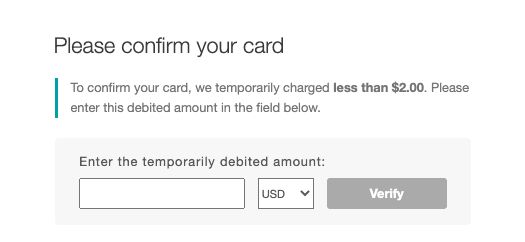
The temporary hold is used only for verification. Please note that it may take some time for it to disappear from your statement, depending on your card issuer.
For more details, please refer to Xsolla – Card Verification.
If verification fails, see “My Xsolla card payment failed. What should I do?”
What to do depends on whether the Card Verification screen appeared during your payment and what happened during that step.
A. If the Card Verification screen appeared and verification failed
-
Error 1092 or 3032
“Your payment was declined for security reasons. Please contact our customer support for further assistance at help.xsolla.com.”→ This error may appear when Xsolla’s security system can’t process your payment. Please contact Xsolla's Customer Support for assistance.
-
Error 2009 or 3017
“It looks like you have exceeded the maximum number of attempts allowed.”→ This error may appear after several unsuccessful attempts. Please try paying with a different card.
Other errors
If the payment failed or the screen closed automatically for any other reason, please submit a ticket to our official support with the exact message you saw and a description of the issue occurred.
B. If the Card Verification screen did not appear and your payment was declined
This is most likely a decline from your card issuer.
→ Please try using a different card, or contact your card issuer directly, as we’re unable to resolve issuer declines on our end.
For how the verification step works, see “How do I complete Xsolla card verification?” or visit the relevant page on Xsolla's FAQ.